It is the comparison most people land on: Adobe Lightroom Mobile, the professional subscription editor, versus Snapseed, Google's completely free powerhouse. Both are legitimate tools, and both have millions of loyal users. This breakdown compares them where it matters and ends with a pick that depends on one honest question about how you edit.
The Short Answer
Snapseed wins for most people, because it is genuinely free, ad-free, and powerful enough for real photo work in 2026. Lightroom wins for anyone who shoots RAW regularly, works across devices, or needs AI-assisted masking and cloud sync. If you do not know what RAW is, start with Snapseed and do not pay anyone yet.
Why These Two Are Compared So Often
On the surface they occupy the same lane: full photo editors on your phone, not just filter sliders. The real difference hides underneath. One is a subscription product with AI tools and cloud infrastructure; the other is a completely free app with a deep manual toolkit. To pick between them, you have to know which of those two realities you actually want.
The two apps also represent the two ways people edit photos in 2026. Lightroom is the workflow tool for someone who treats editing as part of a process, with libraries, presets, and sync. Snapseed is the tool for someone who treats editing as a single action: open the photo, make it better, move on. Neither approach is wrong, but they lead to different apps.
One more difference to keep in mind: Lightroom is one piece of Adobe's wider software ecosystem, so it appeals to people who already use Photoshop or other Creative Cloud tools on a computer. Snapseed stands alone, and that independence is exactly what some people prefer. There is a real chance that either of these two details alone will settle the decision faster than any feature comparison.
Round 1: First Impressions and Setup
Lightroom: Clean, modern interface with a bottom toolbar of icons. It asks you to sign in with an Adobe account, and the free tier works but nudges you toward the paid plan at several points.
Snapseed: Opens straight into editing, no sign-in wall, no account at all. The layout is older-looking and the tools live behind a plus button, but it opens the moment you tap it.
Winner: Snapseed, for the person who wants to edit without creating an account first. Lightroom looks nicer, but it puts a step between you and the photo.
Round 2: Everyday Use and Features
Lightroom: Pro-grade color grading, presets, AI masking, healing tools, and generative removal. The AI tools are the reason professionals moved to it on mobile.
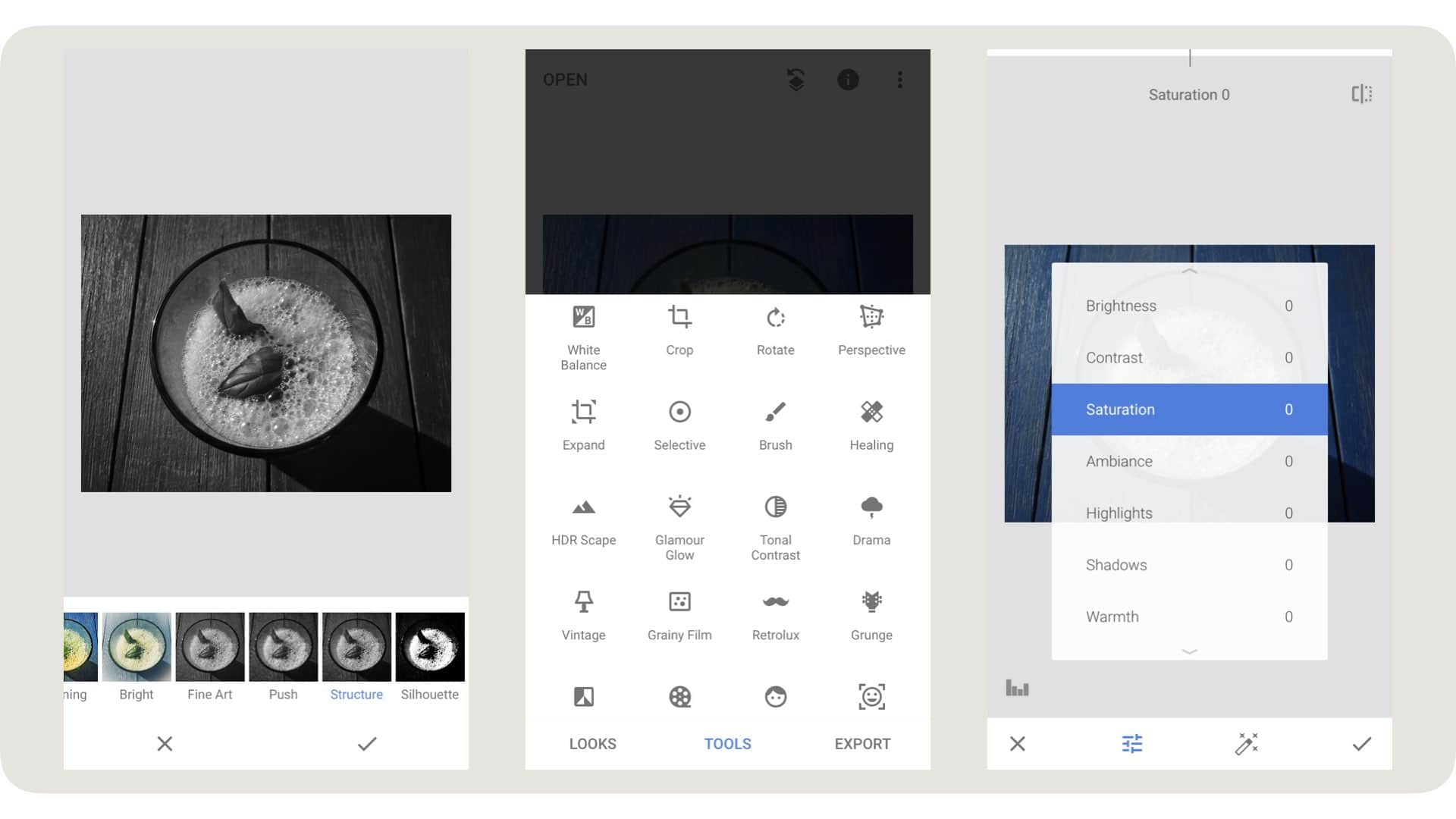
Snapseed: Twenty-nine tools including selective adjustments with brush precision, healing, HDR, curves, and perspective correction. No AI background removal and no generative fill, but nothing on this list is a toy.
Winner: Lightroom, if you want AI and preservation of edit history across devices. Snapseed keeps up impressively for its price, but the tool depth and AI wins this round.
Round 3: Performance and Reliability
Lightroom: Runs smoothly on modern phones, though heavy AI edits take a moment. Cloud sync is the main reliability feature: edits stay attached to the photo across phone, tablet, and desktop.
Snapseed: Lightweight, fast, and stable on older devices. No cloud, so work lives on the device, and there is no account to lose access to.
Winner: Snapseed for speed and simplicity, Lightroom for the cross-device workflow. For quick edits on an old phone, Snapseed feels instant.
Round 4: Price and Long-Term Cost
Lightroom: Free tier covers DNG editing and basic adjustments. The standalone plan runs around $9.99 to $11.99 per month, and the photography plan with desktop Photoshop is around $14.99, so the cost adds up over a year.
Snapseed: $0. No ads, no subscription, no watermark, no in-app purchases. The entire toolkit is free forever.
Winner: Snapseed, by a mile. This round alone decides the match for most casual and semi-serious editors.
The Scorecard
| Aspect | Lightroom | Snapseed |
|---|---|---|
| Price | Subscription from ~$10/mo | Free forever |
| RAW editing | Yes, pro-grade | Yes, DNG support |
| AI tools | Masking, generative remove | Minimal |
| Cloud sync | Yes, cross-device | No |
| Ads / watermark | None on paid, limited free | None, ever |
The Final Pick
If you edit once in a while, post to social media, and want it done without paying a subscription, install Snapseed. If you shoot in RAW, edit on both a phone and a computer, or need AI masking for serious work, Lightroom is the pick, and its subscription is the price of that workflow. The honest middle path: start with Snapseed and only move to Lightroom when a specific feature you need is not there.
If you are still deciding, try this: spend one week editing your normal photos in Snapseed, then one week in Lightroom's free tier, and keep the one you reach for without thinking. Almost nobody regrets starting from the free app, and moving up is easier than paying monthly from day one.
FAQs
Is Snapseed really completely free?
Yes. Snapseed has no ads, no subscriptions, no watermark, and no in-app purchases on either iOS or Android.
Is Lightroom Mobile worth the subscription?
Only if you use the pro features: RAW workflow, AI masking, and cross-device cloud sync. The free tier is fine for basic adjustments.
Do Lightroom and Snapseed support RAW files?
Both do. Lightroom handles camera RAW natively with a subscription, and Snapseed supports DNG files on compatible devices.
Which app is better for sharing to Instagram?
Both export well. Snapseed is faster for a quick edit; Lightroom adds pro color grading if you want a consistent feed look.
Can I use both apps together?
Yes, and many people do. Use Lightroom for the heavy work and Snapseed for quick selective fixes without paying twice.
Which One Deserves Your Home Screen
Snapseed is the default for most people in 2026: free, fast, and genuinely capable. Lightroom earns its spot only if your workflow demands RAW and cross-device editing. Install Snapseed first, take a week, and let your own edits tell you whether you miss anything.
Safety Note and Disclaimer
Our website is a third-party distribution and information site, not the official app store or the app developer.
Download only from a source you trust and verify the source.
Review the permissions the app requests and decline anything that looks excessive.
Keep your device's security settings and antivirus up to date.
Prefer official stores (Google Play) when the app is available there.
This article is an independent overview and is not affiliated with the app's developer.